Put Your Yard Board on a TV in the Feed Room
Your yard, at a glance
A yard board brings everyone’s horses together in one place:
- every horse’s feeds;
- asks for help, such as “Can someone bring Otis in at 4?”;
- notices, such as “Farrier here Tuesday”;
- visits and alerts.
Everyone on the board sees it in the Equessa app. Put it on a screen in the feed room or tack room as well, and anyone at the yard can see it while they work, phone or no phone.
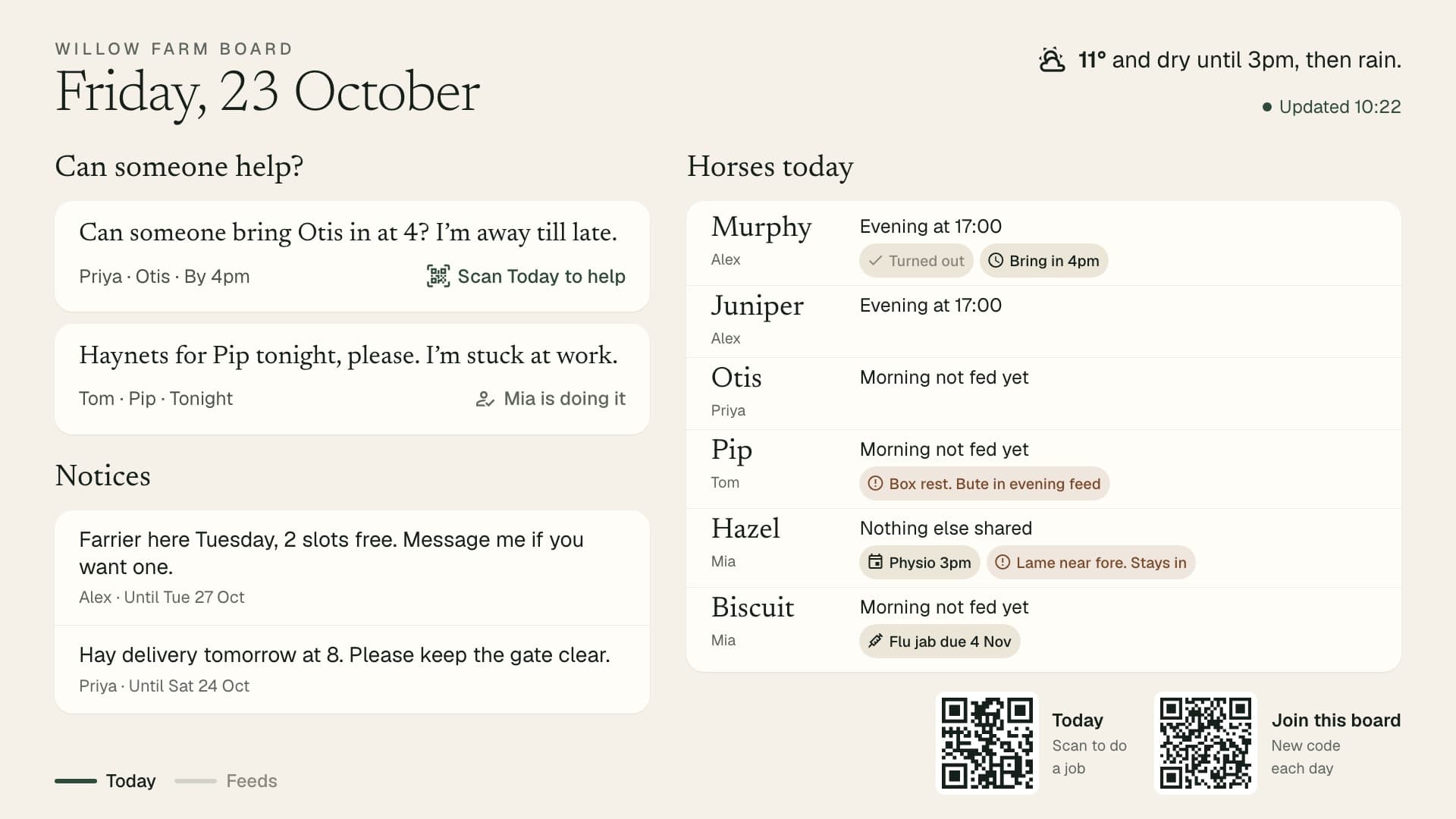
The screen only shows the board. Nobody signs in on it, and nothing can be changed from it. Every action happens in the Equessa app on a phone. You pair the screen once from your phone, and it stays on the board until you remove it.
What you need
- A screen with a web browser. An Android TV or Google TV, an old tablet, or a laptop, connected to the yard’s wifi.
- The Equessa app on your phone, up to date.
- A yard board, with you as one of its admins. Whoever starts a board is its admin. To start one, open the menu in the app, tap Yard board, then Start a board. If someone else at your yard looks after the board, ask them to do the pairing: it only takes a minute.
Setting up an Android TV
1. Install a browser on the TV
Android TV doesn’t come with a web browser, so install one from the Google Play Store on the TV:
- Fully Kiosk Browser is the best choice for a screen that’s always on the board. It opens the board when the TV turns on, hides the browser bar, and keeps the screen awake.
- TV Bro is a simple, free alternative if you just want to try it.
On a tablet or laptop, the browser you already have is fine.
2. Stop the TV going to sleep
A board that switches itself off isn’t much use. The menu names vary a little between TV makes. On the TV:
- Turn the screen saver off. Open Settings › System › Ambient mode (on some TVs, Device Preferences › Screen saver) and set it to Never or Off.
- Turn the sleep timer off. Open Settings › System › Power (or Energy) and set Sleep or Turn off display to Never.
3. Open the board page
In the browser on the TV, go to equessa.ai/board. In Fully Kiosk Browser, set it as the Start URL under Settings › Web Content Settings.
The screen shows “Scan to put this screen on your board.”, with a large QR code and a short code under it:
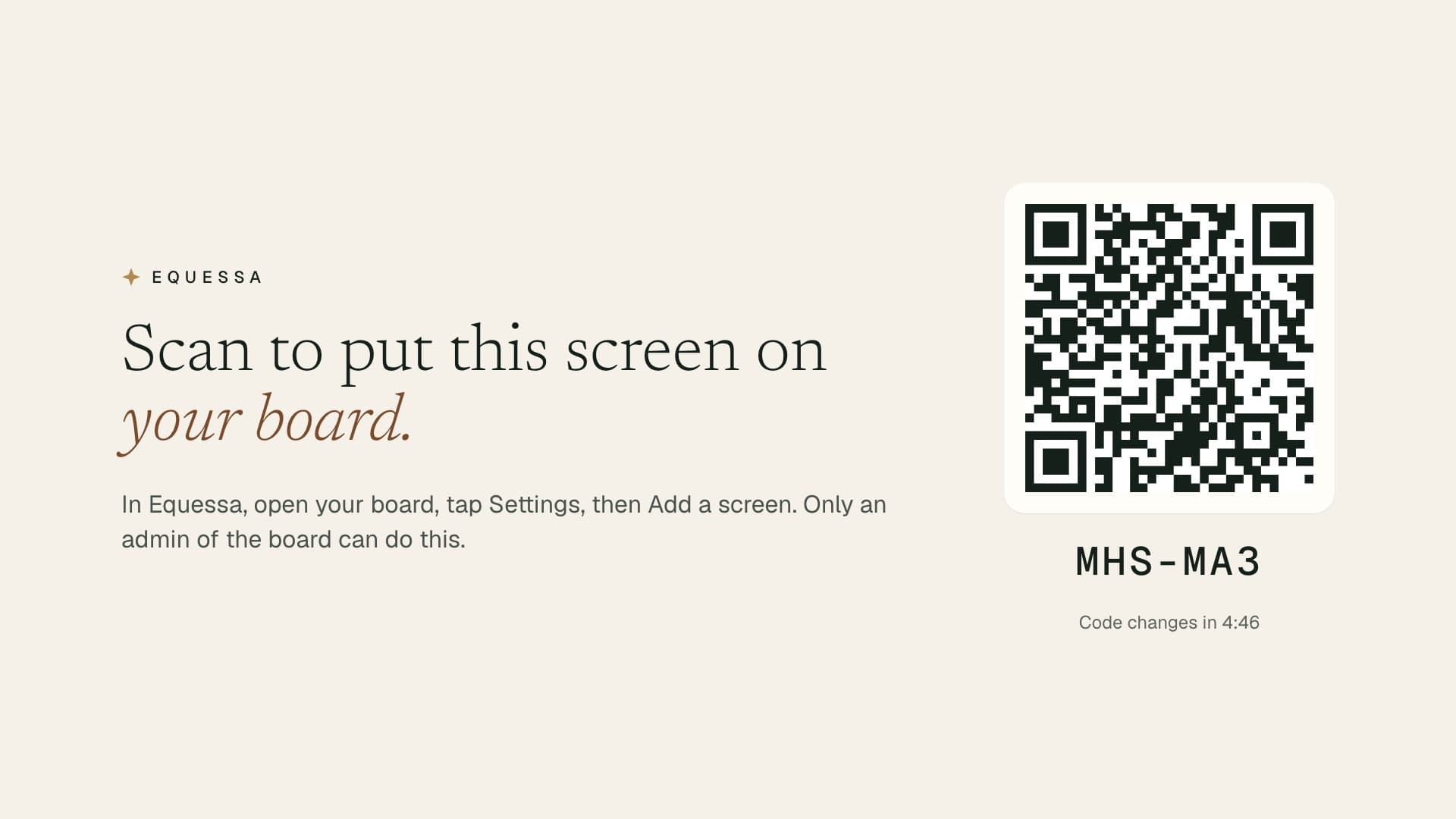
The code changes every five minutes. That’s expected: when the time runs out, the screen shows a new code by itself.
4. Pair it from your phone
- Open the board. In the Equessa app, open the menu, tap Yard board, and open your board.
- Start adding a screen. Tap the settings cog, then Add a screen.
- Scan the screen. Tap Scan the screen’s code and point your phone at the QR code on the TV. If it won’t scan, for example because of glare or distance, tap Enter the code instead and type the short code shown under the QR code.
- Match the number. The screen now shows a big number, and your phone shows three. Tap the one that matches. This makes sure you’re adding the screen in front of you.
- Name the screen. Give it a name you’ll recognise, such as Feed room, and tap Add screen.
Within a few seconds, the screen switches to your board.
If you tap the wrong number, nothing is added. The screen shows a new code: just scan it again.
5. Make it start on its own
So the board comes back after a power cut, turn these on in Fully Kiosk Browser’s Settings › Device Management:
- Launch on Boot
- Keep Screen On
The screen stays paired through restarts and power cuts. You won’t need to pair it again.
What the board shows
The screen switches between its pages every 20 seconds:
- Today:
- the yard’s asks for help, and who’s doing them;
- each horse’s next feed;
- jobs, visits and alerts.
- Feeds: every horse’s meals side by side, with the next meal highlighted and a tick once a meal has been fed.
- This week: every horse’s rides and rest days from Plan my week, a day to a column, with today highlighted and Done on what’s been done. It shows once someone on the board has an active weekly plan. On a big yard it shows eight horses at a time, busiest today first.
Along the bottom, a ticker scrolls past the notices and the month’s top helpers: whoever has done the most jobs for others. An admin can turn the top helpers off in Board settings in the app.
Each owner chooses what the board shows about their own horses. Health details stay private unless the owner ticks them, and an owner can untick Weekly plan to keep a horse’s plan off the screen.
In the corner are two QR codes for anyone standing in the feed room:
- Today: scan to do a job. It opens the board in the app, so someone can tap I’ll do it on an ask for help.
- Join this board. It opens the invite, for someone new at the yard. This code changes every day.
The board updates every minute.
The pages turn by themselves, but you can pick one too:
- On a touch screen, tap Today or Feeds at the bottom, or swipe left or right.
- With a mouse, click Today or Feeds.
- With the TV remote, press left or right.
The page you pick stays for a minute and a half before the board starts turning again.
Change how it looks
For a dark feed room, or early mornings and late evenings, the board has a night look. In the app, open the board’s settings, tap Look, and choose:
- Ivory: light, for a bright room;
- Night: dark, so it doesn’t glare;
- Night after sunset: switches by itself at sunset and sunrise at your yard.
Add more screens, or remove one
A board can have up to 10 screens: one in the feed room, one in the tack room, one in the office.
To remove a screen, open the board’s settings in the app and tap Remove next to it under Screens. The screen stops showing the board straight away and goes back to showing a pairing code.
The Screens list also shows when each screen was last seen. If it says “Offline since …”, the screen has lost its connection or been switched off.
Troubleshooting
- The screen says “Not updated since…”. The screen can’t reach Equessa, so check the yard wifi. It carries on showing the last board it had, and catches up as soon as it’s back online.
- The pairing screen says “Can’t reach Equessa.” The screen isn’t online. Check its wifi; it tries again on its own.
- Your phone says “This code has expired.” The screen has moved on to a new code. Scan the new one.
- Your phone says “Only an admin can add a screen.” Ask an admin of the board to pair it. The board’s settings show who looks after it.
- Your phone says “A board can have up to 10 screens.” Remove a screen you no longer use, then add the new one.
- The TV keeps going to sleep. Check step 2 above, and turn on Keep Screen On in Fully Kiosk Browser.
- Your phone won’t scan the QR code. Tap Enter the code instead and type the short code under the QR code.